Progression
The Progression Hub provides visual summaries per site of enrollment, participant status, visit completion, data availability, workflow timing, and recent participant activity.
Target & Forecast#
Tells you whether your site and the network are on track with enrollment and visit completion. The graph plots lines for Target, Actual, and Forecast, and you can toggle to view each site separately. This graph is updated each time a visit is marked complete in LaunchPad.
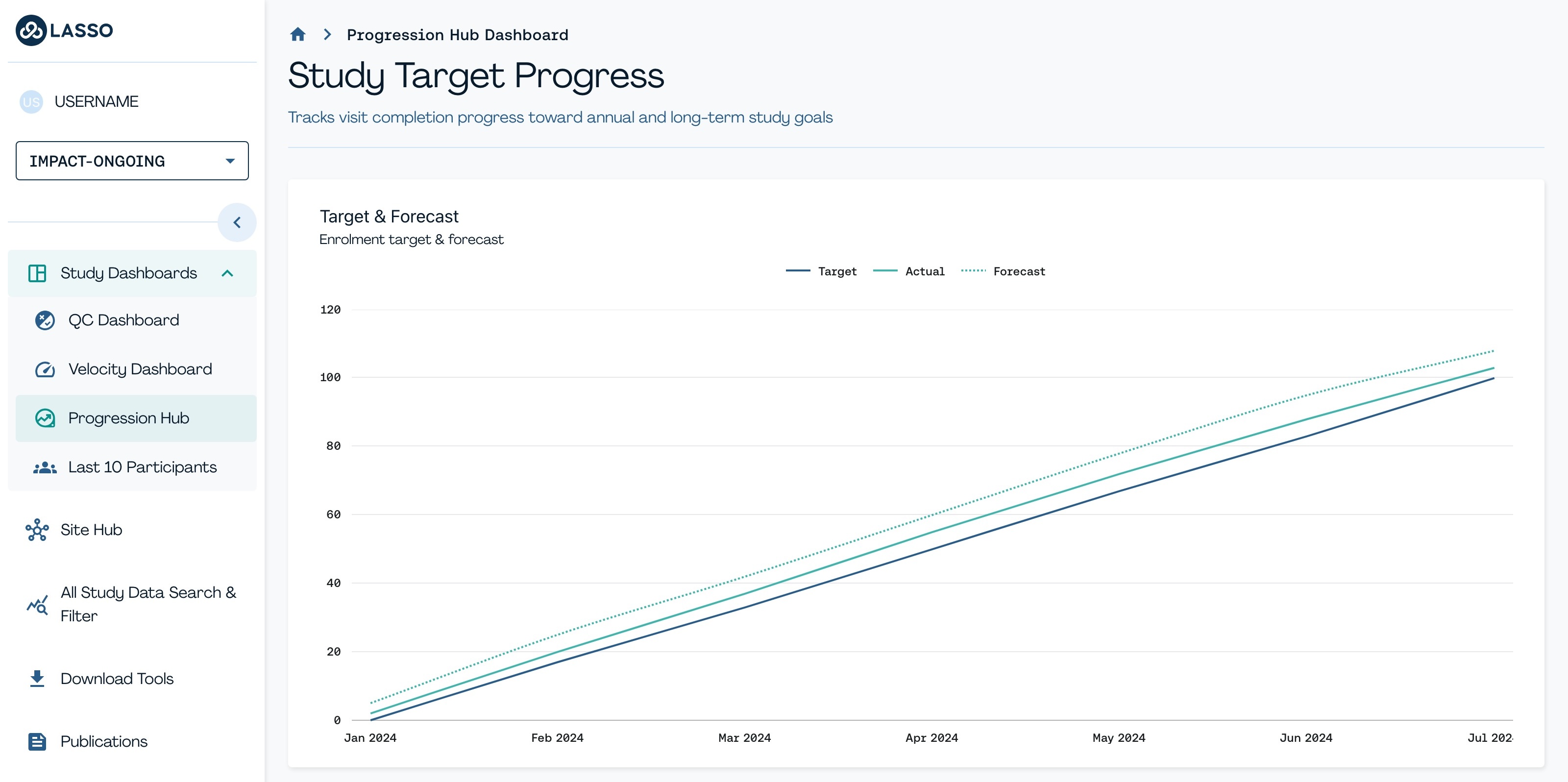
| Questions this view can answer | Information available |
|---|---|
|
|
Participant Status#
This view shows who is in your study population right now. The panel groups everyone at your site into four categories:
- Active: enrolled and expected to keep coming back for visits.
- Ineligible: went through screening but didn't meet the inclusion criteria.
- Inactive: temporarily out of active follow-up, for example moved, hard to reach or on a clinical pause, but not fully withdrawn.
- Withdrawn: enrolled at some point, but later withdrew consent or were discontinued per protocol.
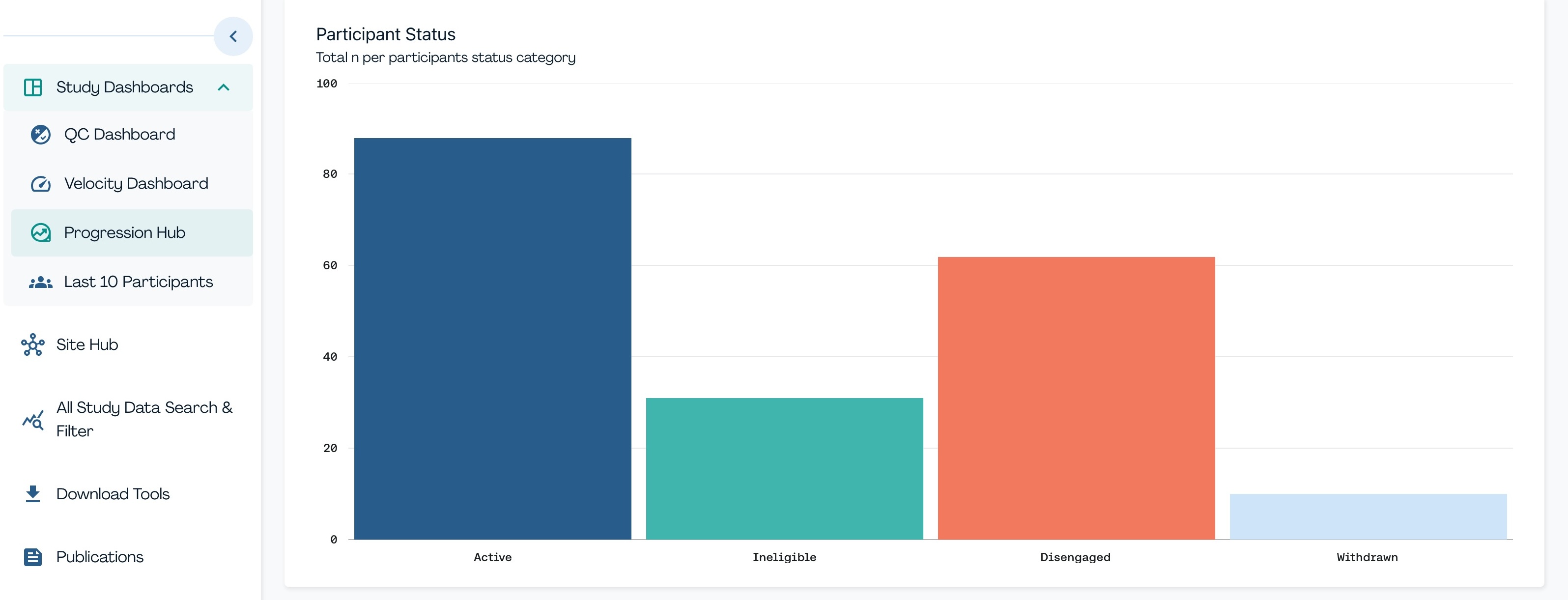
| Questions this view can answer | Information available |
|---|---|
|
|
Percent Visit Completion#
This view shows what percentage of planned visits actually made it all the way to Completed across each visit type. A visit only counts as completed once it is marked Visit Complete in LaunchPad, with reasons added for any questionnaires that weren't done. Started but not completed usually indicates that visits were not closed properly or that reasons for noncompletion were not recorded.
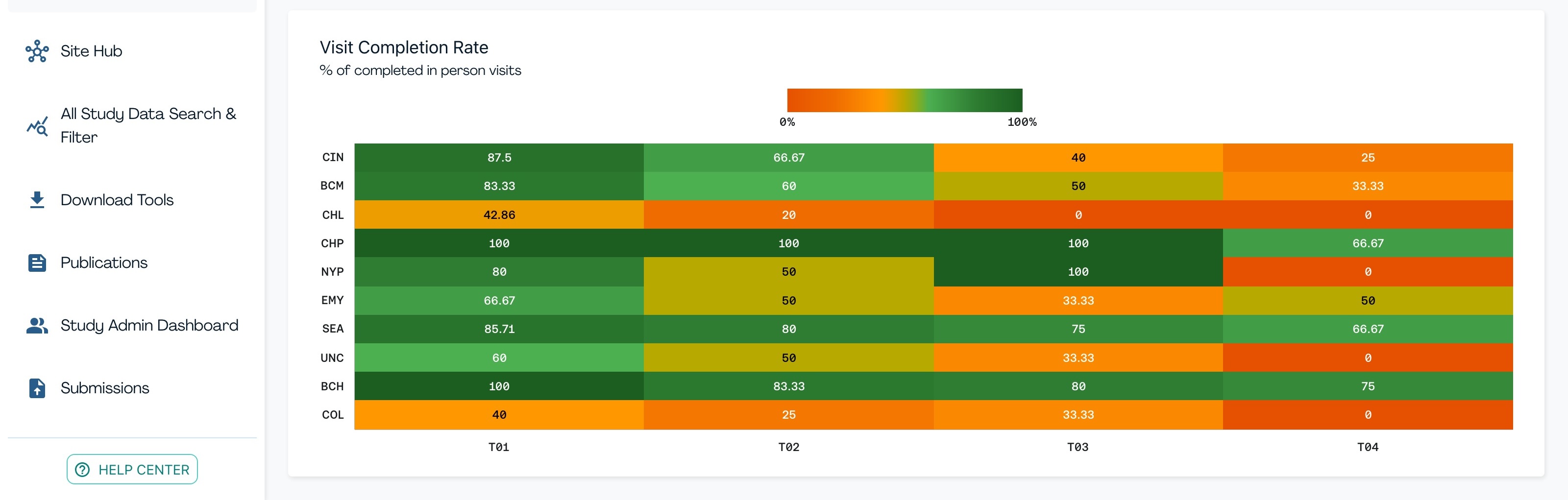
| Questions this view can answer | Information available |
|---|---|
|
|
Data Dashboard#
Where you go to look at the data itself, organized into three tabs:
- Cohort Demographics: High-level snapshot of participant demographics, including site filtering.
- By Research Domain/Variable: Examine specific measures and link to data dictionaries.
- By Visit: Review how complete and clean data are across study.
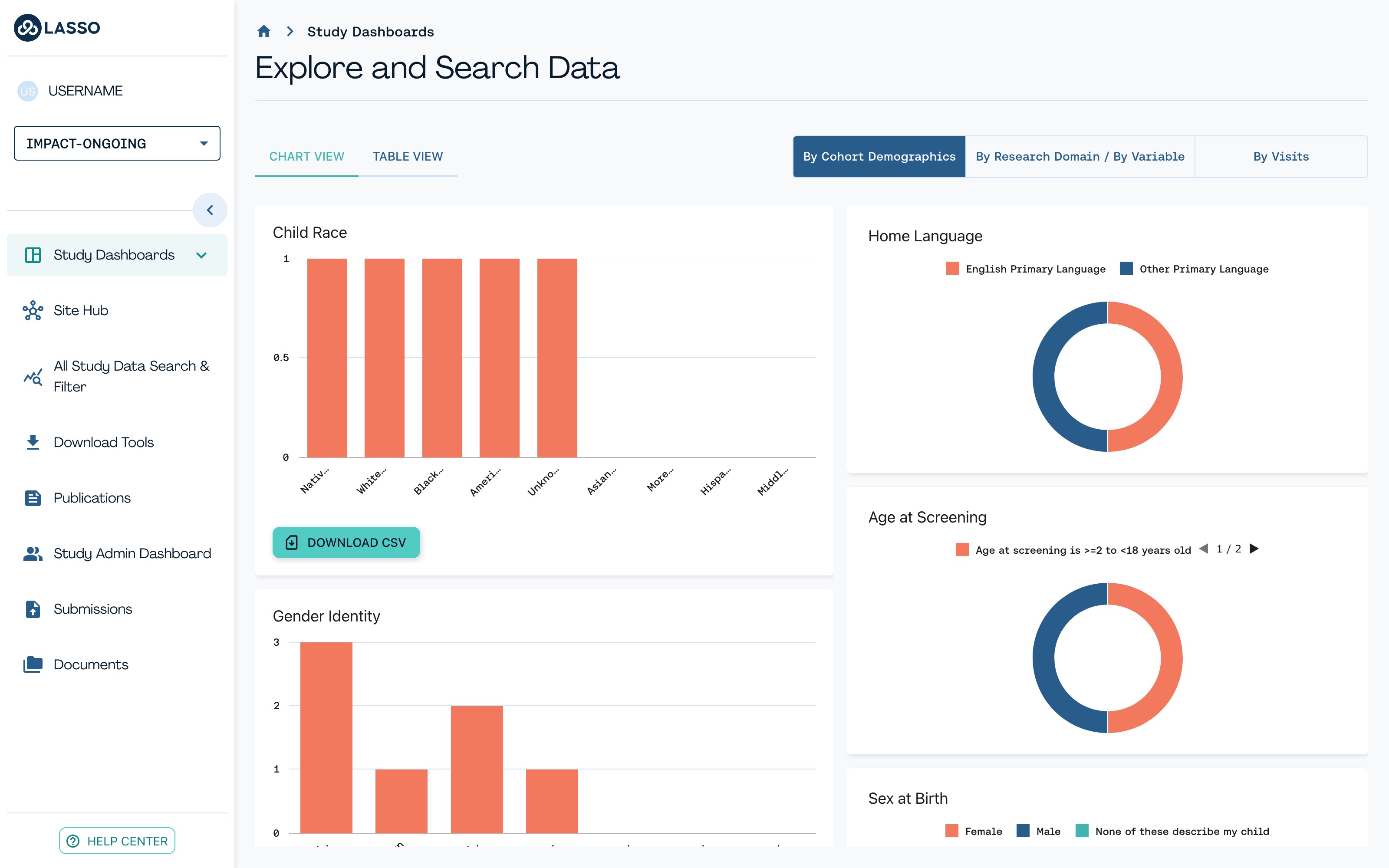
| Questions this view can answer |
|---|
|
Velocity Dashboard#
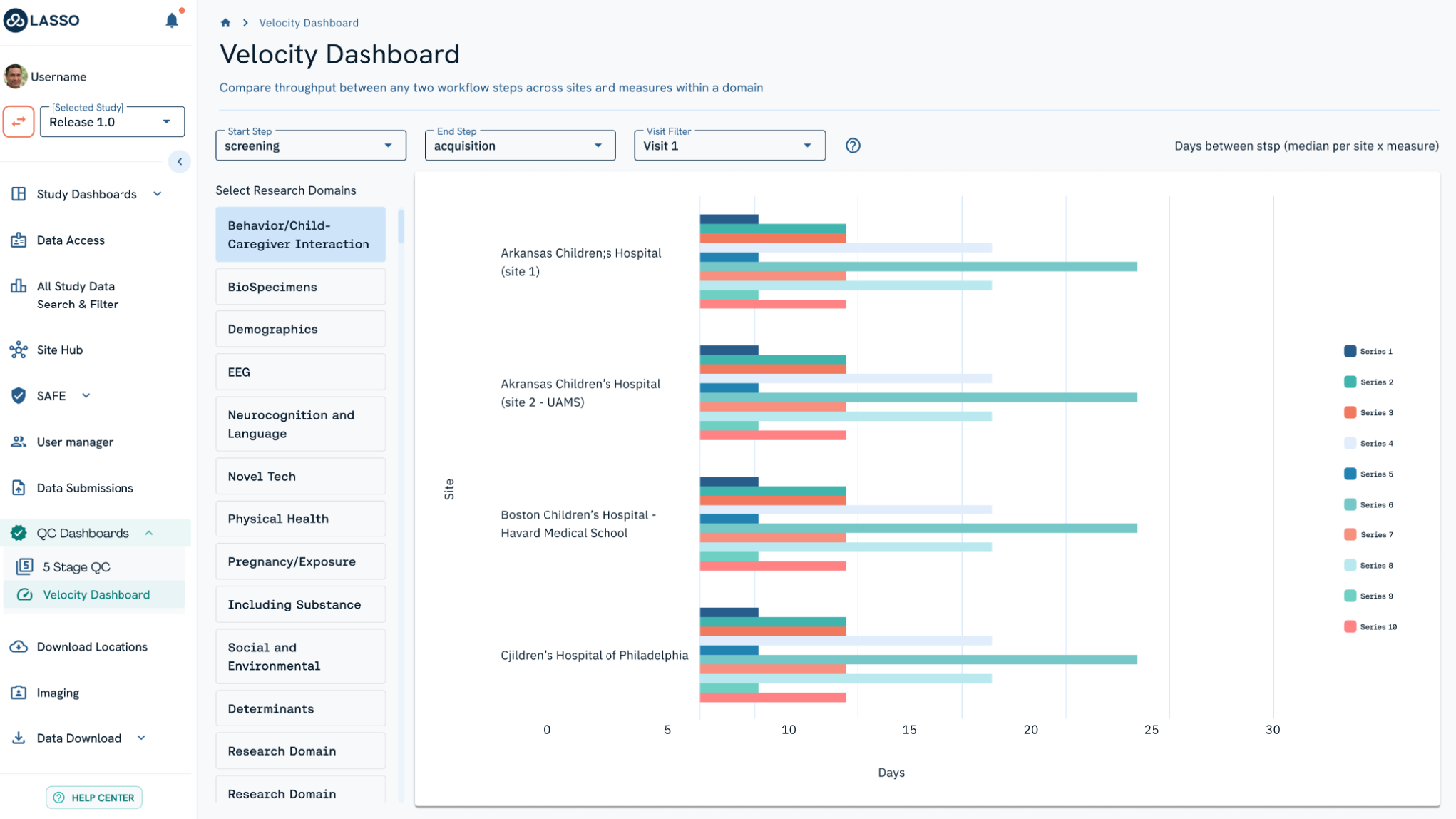
Measures how fast participants move through key workflow steps. Choose a Start step and an End step (e.g., from screening to acquisition), then filter by research domain. For each site and measure, the chart shows the median number of days between those two steps.
| Questions this view can answer | Information available |
|---|---|
|
|
Last 10 Participants#
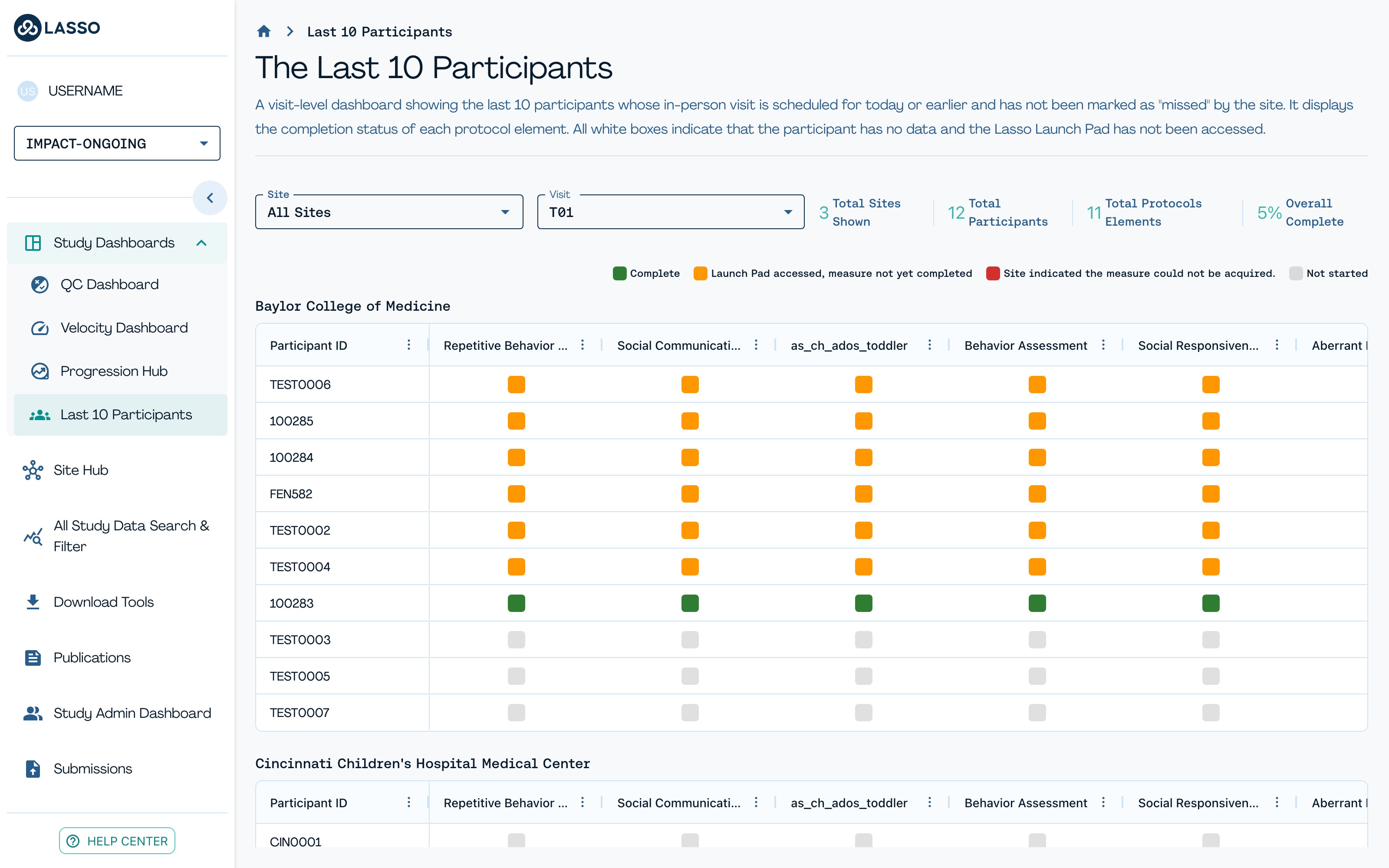
A quick operational view of participant progress across study sites, focused on the most recent participants expected to have started or completed their visit. This view shows the 10 most recent participants per site, the status of protocol elements, forms and study activities for the selected visit, and color-coded indicators for complete, in progress, not started, or unable to be completed. You can filter to a specific visit and view all sites together or focus on just one.
| Questions this view can answer | Information available |
|---|---|
|
|